
The everyday problem
A team member reads each enquiry, copies contact details to a spreadsheet, adds a CRM record and reminds a colleague to respond. A busy day can leave unclear ownership or duplicate records.
AI & automation · Explained
Let your everyday tools pass information between them, so your team can stop copying it by hand.

Automation means setting up a repeatable instruction: when something happens, check the information, then do the agreed next thing. For example, a website enquiry can create a customer record and a follow-up task. AI can help interpret a message or draft a reply inside that process. You do not need AI for every step.
01 / Follow the journey
Select a step to see what happens. This is an explanation, not a live service.
Step 1 of 5 · Example walkthrough
A trigger is the event that starts the process: a submitted form, a new email, a booking or a scheduled time. We choose the exact event so the workflow does not run on unrelated messages.
A customer submits your website enquiry form with a name, email address and service request.
A trigger is the event that starts the process: a submitted form, a new email, a booking or a scheduled time. We choose the exact event so the workflow does not run on unrelated messages.
A customer submits your website enquiry form with a name, email address and service request.
The workflow checks required fields and looks for an existing record. Where useful, AI can suggest a category or draft a summary from free text. Uncertain or incomplete requests can be sent to a person instead of guessed.
The email address is valid. The customer already exists, so the workflow updates that record rather than creating a duplicate.
An action is a change in another tool: add a CRM enquiry, write a row to Google Sheets or create a task. A connector is the bridge between the tools. Only the information needed for the task is passed across.
The request appears in the CRM, with a responsible person and a follow-up date. A shared sheet receives the agreed reporting fields.
A routine receipt can be sent under agreed rules. An AI-written quote or a sensitive response can wait for a staff member to review it. You decide which steps run automatically and which require approval.
The customer receives an acknowledgement. A proposed detailed reply waits for the team to approve it.
The workflow records success or failure. If an app is unavailable, it can retry safely or alert the owner. Duplicate protection prevents a retry from sending the same message twice. The operating guide explains how to pause and recover the process.
The CRM is temporarily unavailable. The request is retained as pending and the owner is alerted; the customer is not told that an uncompleted task succeeded.
02 / Illustrative case study
Illustrative case study: a service business uses Gmail, Google Sheets and a CRM. This scenario explains a possible setup; it is not a claim about a client's results.
A team member reads each enquiry, copies contact details to a spreadsheet, adds a CRM record and reminds a colleague to respond. A busy day can leave unclear ownership or duplicate records.
A selected incoming enquiry triggers validation and a duplicate check. The workflow updates the CRM, assigns a follow-up, records agreed fields in Sheets and prepares a reply. The team reviews anything uncertain and owns the customer conversation.
Establish a baseline for handling time, duplicate records, missed follow-ups and failure recovery. Compare the same measures during a pilot, including the time people spend reviewing AI suggestions.
Work with familiar tools
The wider automation ecosystem offers connections across 3,000+ tools. We confirm your specific apps, account plans and required actions before agreeing a project.
Route selected enquiries, organise files, update agreed rows or check availability.
Create team tasks, work with shared files and send approved notifications.
Handle opted-in enquiries or send agreed updates through supported business interfaces or bots.
Work with supported business-page, lead-form or publishing actions. Personal inbox access and unrestricted outreach are not implied.
Pass approved information between the tools responsible for each part of the process.
Ecosystem reference: Zapier’s app directory lists thousands of integrations. This is an ecosystem count, not a Laccino connector catalogue or a promise that every listed action is available. Provider permissions, subscriptions and platform rules apply.
03 / From idea to everyday use
We agree the scope, ownership and running costs before implementation.
Usually we first assess the tools you already use. If an app supports a suitable connector or documented connection, we may be able to keep it. If not, we explain the alternatives and costs before work starts.
Ordinary automation follows defined rules, such as copying an approved form field. AI can interpret less structured information, such as summarising a long message. They can work together, but AI adds uncertainty and needs suitable checks.
Yes. Handover includes who owns the workflow, how to pause it and how outstanding requests are handled. Pausing should not silently discard work.
Availability depends on the platform's approved interfaces, account permissions and supported actions. A connection to a business page does not imply access to personal inboxes or permission for unrestricted outreach.
Related capabilities

Answer routine calls, collect enquiries and help people book, with a clear route to your team.
Explore the guide
Keep customer details, conversations and follow-ups in one shared place.
Explore the guide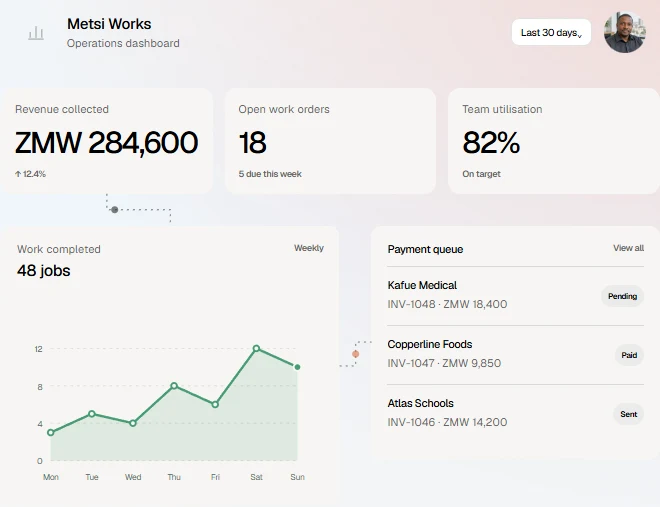
See the numbers and outstanding work that help you make everyday decisions.
Explore the guide